Step by step manual installation :
- Install PHP Engine.
Installation PHP Engine
- Double click the installer (*.msi file, example : php-5.3.8-Win32-VC9-x86.msi). You will see a window that looks like this :
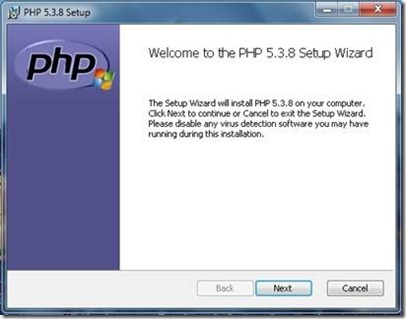
- On the next window, click the “Next >” button.
- Check the radio button “I accept the terms in the license agreement”, and then click the “Next >” button.
- On the next window, again click the “Next >” button.
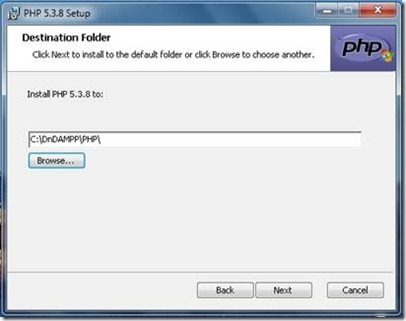
- On the window “PHP 5.3.8 Setup – Destination Folder”, click the “Browse…” button, and navigate to “DnDAMPP” directory under drive “C:” (example : “C:DnDAMPPPHP”), and then click the “Next >” button.
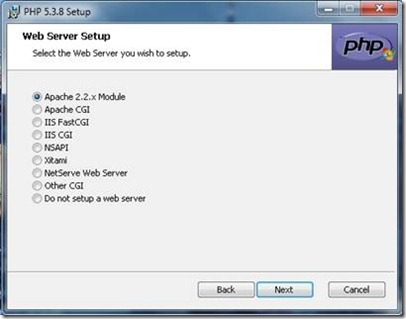
- On the window “PHP 5.3.8 Setup – Web Server Setup”, click the radio button “Apache 2.2.x Module”, and then click the “Next >” button.
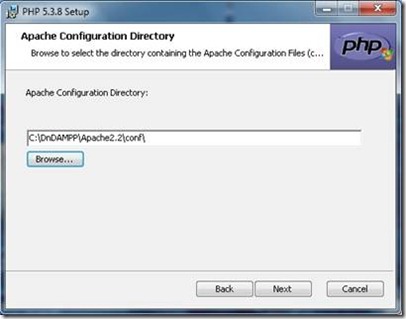
- On the window “PHP 5.3.8 Setup – Select Apache Configuration Directory”, click the “Browse…” button, and navigate to “.DnDAMPP Apache2.2” directory under drive “C:” (example : “C:DnDAMPPApache2.2conf”), and then click the “Next >” button. See the below image :

- On the next window, click the “Next >” and “Install” button.
- The next step wait for the finished installation.
- To complete the installation process click the “Finish” button. You should see a window that looks like this :
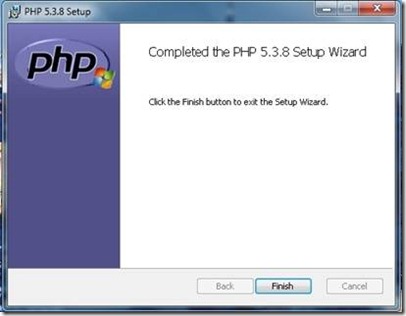
- Restart your apache server,if your are getting any error just reboot your PC.
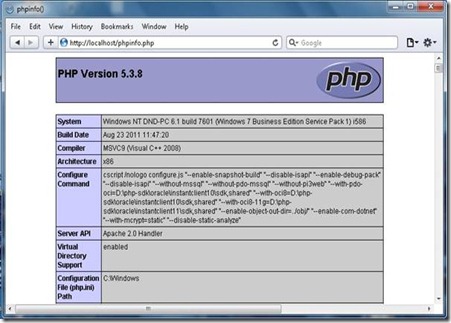
- To ensure that the PHP installation has been done can work well, and then the next step open your favorite text editor (example : Geany, Notepad, Intype, Etc) and copy/paste below code into it :
<?php
    phpinfo();
?>
and then save as this file “phpinfo.php” in your apache document root directory (example : “C:DnDAMPPApache2.2htdocs”). - The next step open your favorite browser and type “http://localhost/phpinfo.php” in the address bar and press the button enter on the keyboard. If you will see the below page , then your PHP works fine.


* … Good Luck ! … *
By : DnD


