Step by step manual installation :
- Installing Microsoft IIS 7.5 Using The Web PI.
- Install PHP Engine.
- Installing PHP Manager For IIS.
- Install MySQL Database Server.
- Install phpMyAdmin.
Installing PHP Manager For IIS
For manual Installation PHP Manager For IIS :
- Can be downloaded for free at : http://phpmanager.codeplex.com/releases/view/69115
Or you can Install PHP Manager For IIS using the Microsoft Web Platform (Web PI).
- Double click Web PI installer (*.exe file, example : wpilauncher_3_10.exe), and then search “PHP Manager for IIS” in the “Search” text field. You will see a window that looks like this :
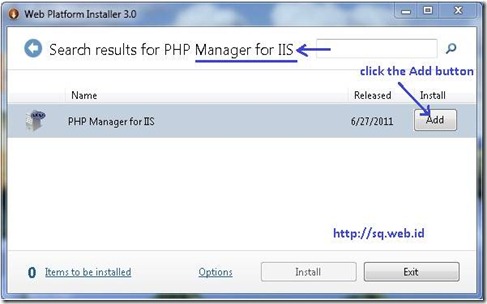
- Click “Add” button beside PHP Manager for IIS, and then click the “Install” button at the bottom of the screen.
- On the next window click the “I Accept” button.
- The next step, please wait for the finished installation.
- To complete the installation process, click the “Finish” button.

Configuring PHP Manager for IIS
- Open PHP Manager for IIS, Click the Windows Start Menu, type “IIS Manager” in the “Search programs and fields” text field and then press Enter on the keyboard.
![clip_image002[5]](http://lh5.ggpht.com/-4CT4-z6_Rm8/Tuzlfp-Si-I/AAAAAAAABYw/ddM3kDV14r8/clip_image0025_thumb1.jpg?imgmax=800 "clip_image002[5]")
- On the window “Internet Information Service (IIS Manager)”, Find the “PHP Manager” feature, see the below image :
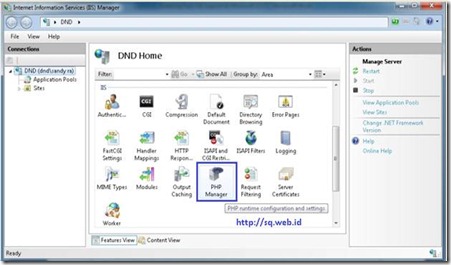
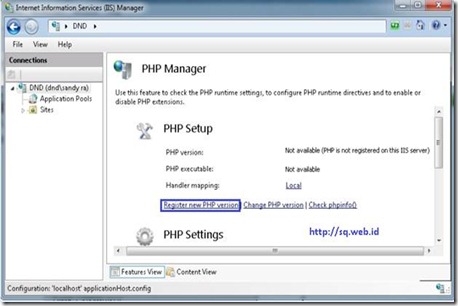
- Click on “Register new PHP version” task and then provide the full path to the location of the main php executable file: php-cgi.exe (Example : C:Program FilesPHPv5.3php-cgi.exe).
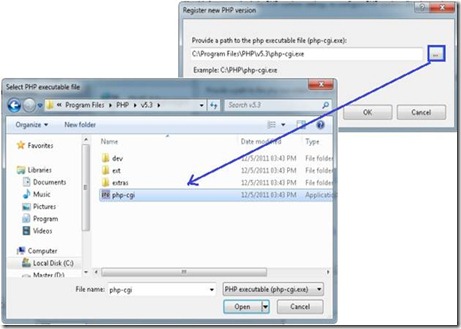
- Click on “Check phpinfo()”, and then click the “Ok” button.
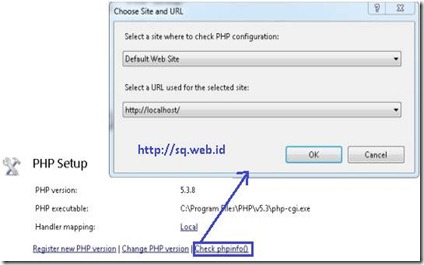
- If you will see the below page , then your PHP works fine.

![clip_image002[5]](http://lh6.ggpht.com/-hp6y0c671d0/TuzlesgzElI/AAAAAAAABYo/iVzOk4_6074/s1600-h/clip_image00253.jpg "clip_image002[5]")


* … Good Luck ! … *


