Step 1 : Requirements
For the create PHP with MySQL Database in the Microsoft WebMatrix,
- Requirements
- Creating PHP Site
- Open The Workspace and Creating PHP File
You can see in the url Creating PHP and MySQL Website With WebMatrix
Step 2 : Creating MySQL Database
- Open your MySQL Command Line Client. To open MySQL Command Line Client Go to Start Menu –> All Programs –> MySQL –> MySql Server 5.5 –> MySQL 5.5 Command Line Client.
- If you have seen window “MySQL 5.5 Command Line Client”, type your password in dialog “Enter password” and press the button enter on the keyboard.
- Now you are ready to write SQL code, type below code to creating new database :
MySQL > Create Database `DnDPHP`;


Step 3 : Configuring MySQL Database Connections With Microsoft WebMatrix
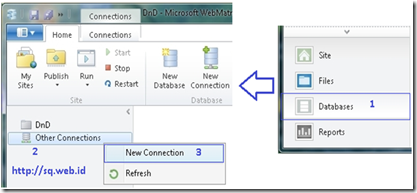
- Click the Databases workspace selector to open the Databases workspace.
- In the navigation pane on the left, right click the “Other Connections”, and then click New Connections.
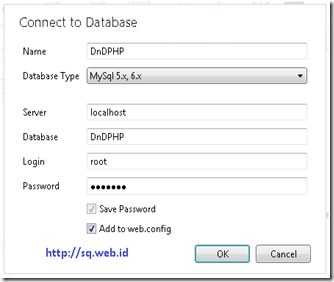
- If you have seen window “Connect to Database”,
- In the Name box, type your name database connection (example : DnDPHP).
- In the Database Type, choose MySQL 5.x, 6.x.
- In the Server box, type localhost.
- In the Database box, type your database name (example : DnDPHP). This is the database that will hold your PHP Website contents.
- In the Login box, type your username (example : root). This is username to access your database.
- In the Password box, type your password. This is password to access your database.
- Check in the Add to web.config check box,
and then click the “OK” button.
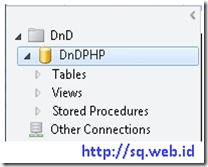
- You should see a window that looks like this :


Step 4 : Checking your MySQL Database Connections
- Click the Files workspace selector to open the Files workspace.
- In the navigation pane on the left, right click the “DnD” Directory, and then click New File to creating the “PHP” file.
- The next step, if you see the “ConnectionMySQL.php” file in the workspace, now you are ready to write PHP code, type below code into it :
<?php$connect = mysql_connect("localhost","[YourMySQLUsername]","YourMySQLPassword");if (!$connect){echo " Not Connected ...!!!";}mysql_select_db("DNDPHP") or die ("Database Indak Ado ...!!!");echo "Connected";?>and then save this file.
- To launch the “ConnectionMySQL.php” file in your browser, Click the “Run”button in the WebMatrix ribbon and select your favorite web browser.

- If you will see “Connected” then your MySQL Database Configuration works fine.


Step 5 : Creating Table In MySQL Database With Microsoft WebMatrix
- Click the Databases workspace selector to open the Databases workspace.
- In the navigation pane on the left, right click the “Tables”, and then click New Table.

- The next step, if you see the “(YourSite).NewTable” file in the workspace, In the column properties :
- In the (Name) box, type your name database connection (example : DnDPHP).
- In the Allow Nulls box, choose “False” to Not Null field or “True” to Null field .
- In the Data Type box, choose data type for field (example : Int).
- In the Default Value box, type default value for field (example : 0).
- In the Is Identity? box, choose “False”.
- In the Is Primary Key?, choose “True” for primary column in your table.
- In the Length, type length for field (example : 2) .
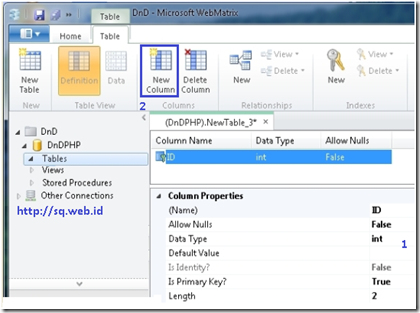
- In the navigation pane on the top, click the “New column” menu to add new column to your table.
- Save your table, press Ctrl+S on your keyboard, if you see the “Save Table” dialog,
- In the Table Name box, type your name table (example : Identity).
- And then click the “OK” button.
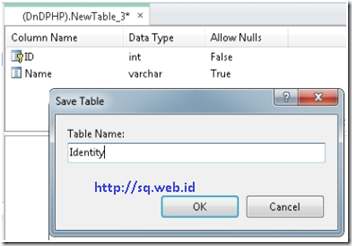
- You should see a window that looks like this :
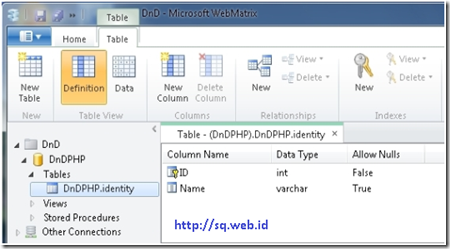
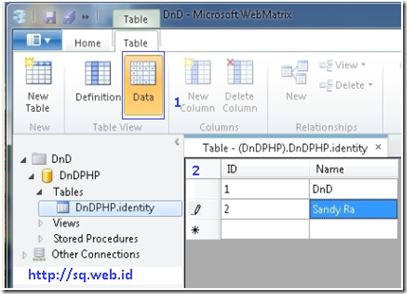
- To insert data on the “Identities” table, In the navigation pane on the top, click the “Data” menu.
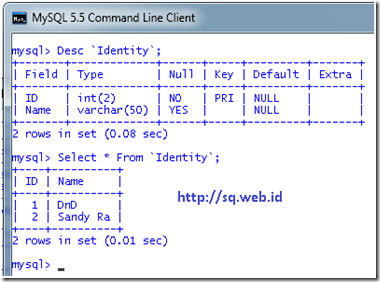
- Open your MySQL Command Line Client, type below code to check your table :
MySQL > Use DnDPHP;MySQL > Desc `Identity`;>MySQL > Select * From `Identity`;
- You should see a window that looks like this :


* … Good Luck ! … *


In choosing server type I only get SQL, no mysql, how can I get it to offer mode dbs than MS ones?
You have to install MySQL manually before configuring the WebMatrix
Please see how to install MySQL in the url "http://www.sq.web.id/2011/11/how-to-install-mysql-database-server-on.html"
subsequent re-configuration steps MySQL on WebMatrix
good luck !